How to create a new project detail page
The structure of the project detail page will begin with a set-pattern of custom content sections followed by different layout choices at the discretion of the author.
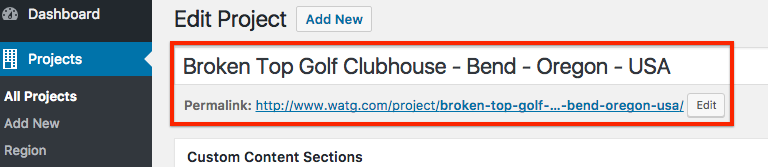
Step 1. Enter the name of the project, for example, Bardessono, Broken Top Golf Clubhouse, Conrad Maldives Rangali Island, etc. Doing so will create the url for the page.
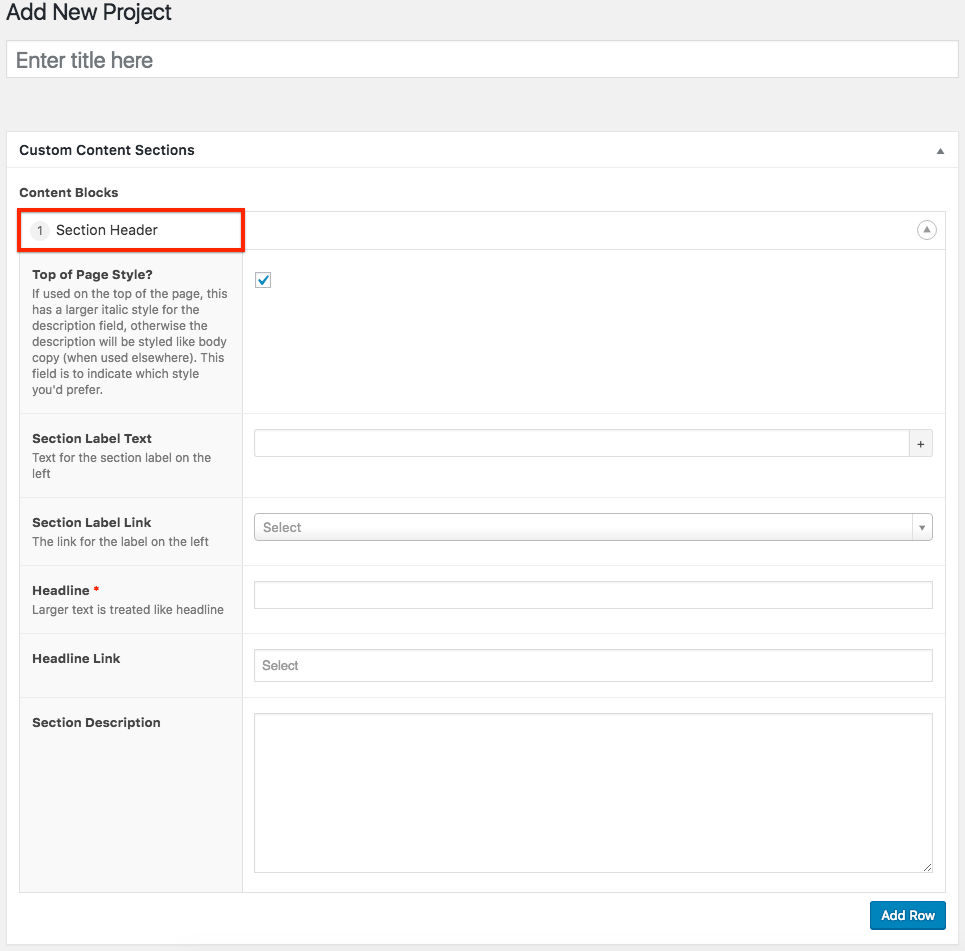
Step 2. Add a Section Header.
Fields to enter:
Section Label Text - Projects
Section Label Link - Enter the link to either the WATG, Wimberly Interiors, or Urban Projects Listing Page.
Headline - The name of the project
Headline Link - N/A
Section Description - Introductory copy that will appear in italics below the headline and above the hero image at the top of the page.
Step 3.
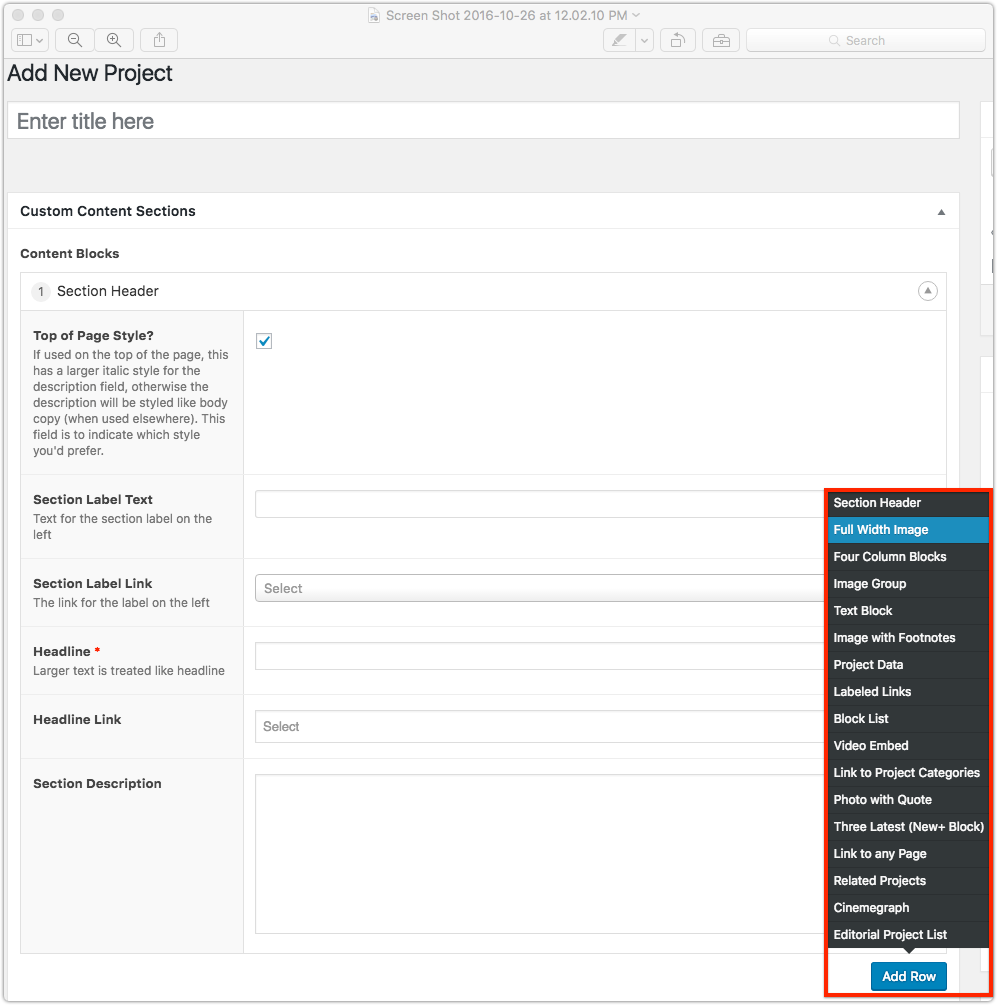
Option 1. - Full Width Image
After the Section Header add a full width image. This will be the hero image for the project. To add the full width image component click "add row" and select "full width image" from the custom content sections menu.

Step 3.
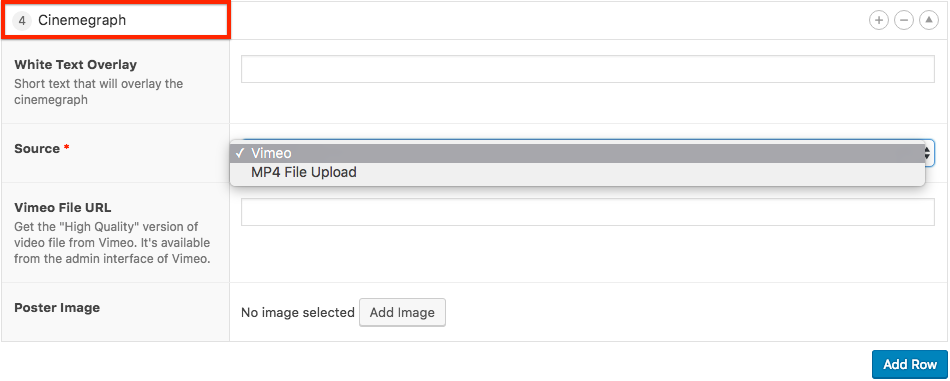
Option 2. - Cinemagraph
A cinemagraph, or moving image, can also be added as the hero image. This can either be linked to an external Vimeo url or the author can choose to add a mp4 file to the media library for use. A static Poster Image should also be added to the cinemagraph component that matches the first frame of the mp4 file. The Poster Image is shown on mobile/tablet devices, and also loads for slow connections.
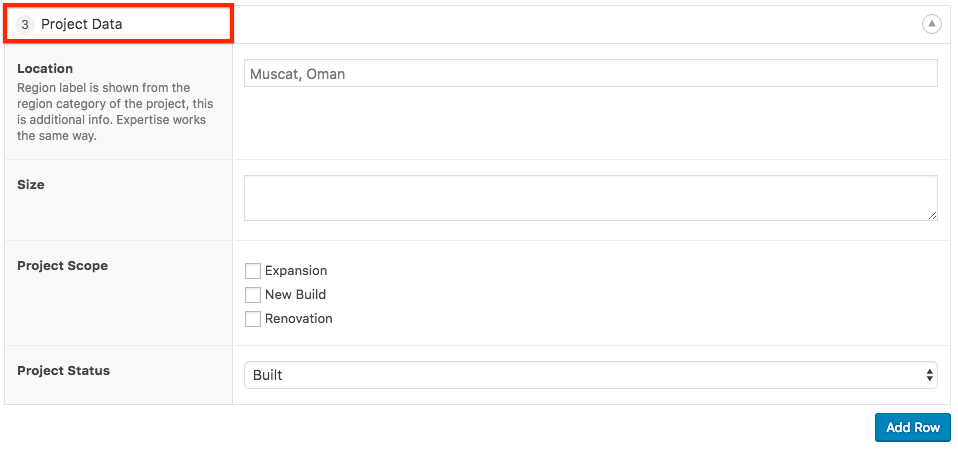
Step 4. Add the Project Data component. Enter the Location and Size statistics, select one or more of the check-boxes related to Project Scope, and select the Project Status.
Step 5. Once the above components in steps 1-4 are established, it is at the discretion of the author to continue the layout of the page according to what works best in conjunction with the copy and imagery available. A typical layout might follow this pattern:
Full Width Image
Text Block
Image Group
Full Width Image
Text Block
Full Width Image
Image Group
Text Block
Full Width Image
Full Width Image
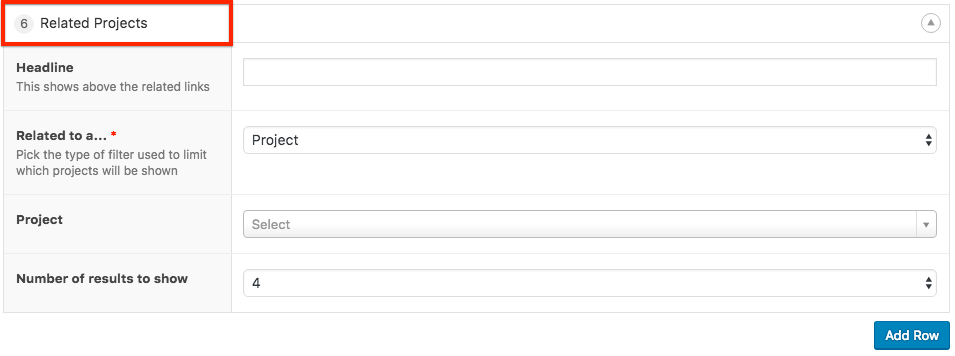
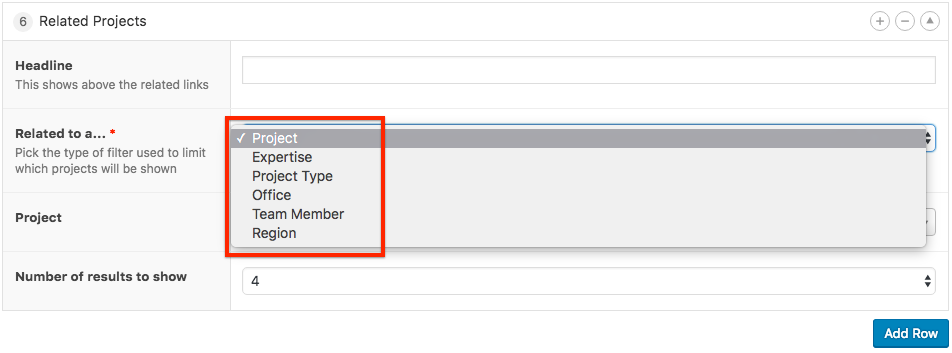
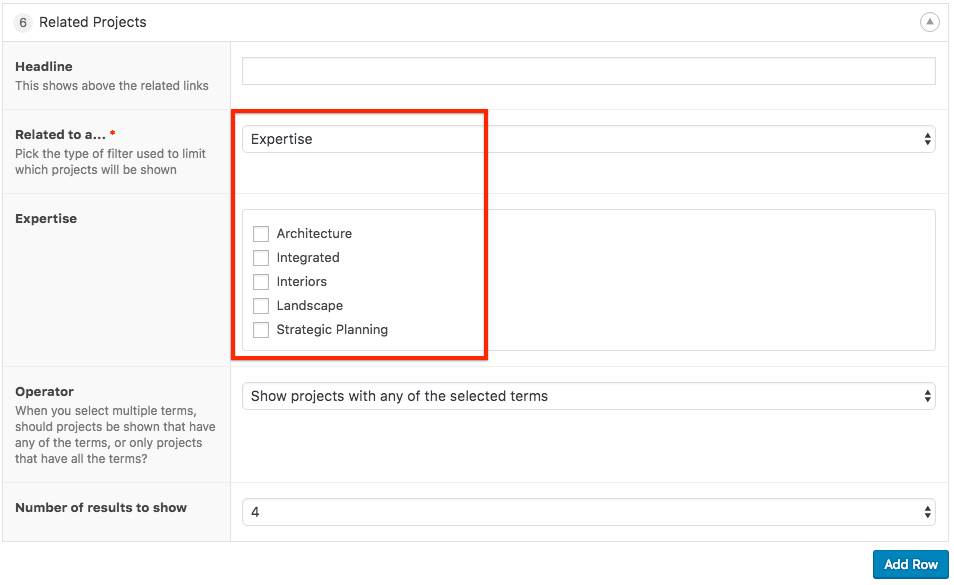
Step 6. The Related Projects component is used as the last component on all WATG and WATG Urban project detail pages. This component will add section of related projects just above the footer when used; combinations of either 4, 8, 12 or all up to 200 results. Depending what is selected by the author, different options will appear as seen below.
At the time this guide was created, the Related Projects component was not being used with Wimberly Interiors project detail pages (due to crossover/duplicate project detail pages).