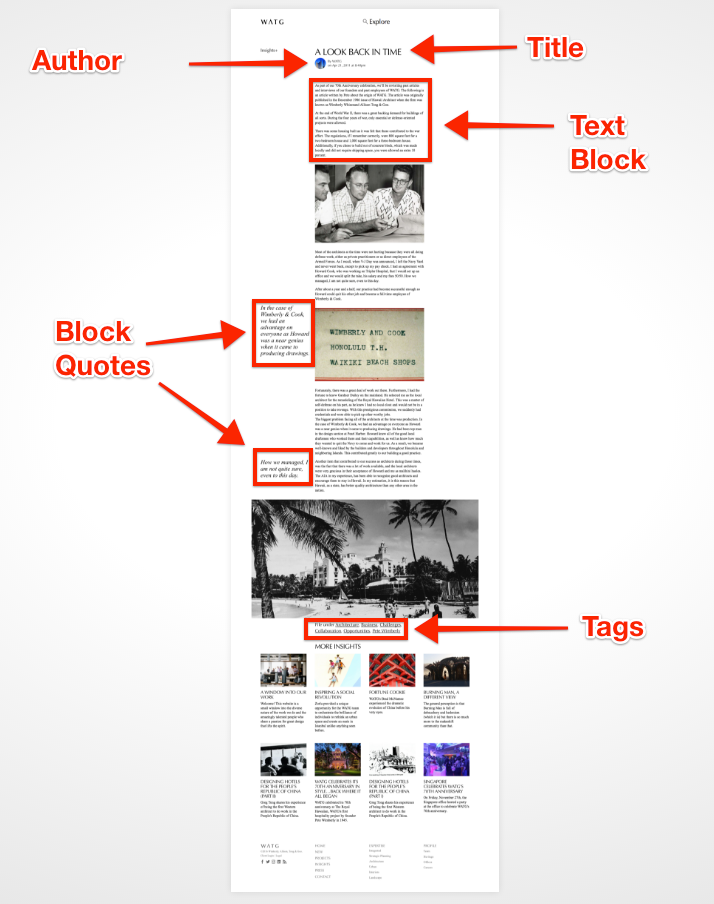
This section describes the steps for creating a new Insights blog post
This link is an example of how an Insights blog post should look once it is published:
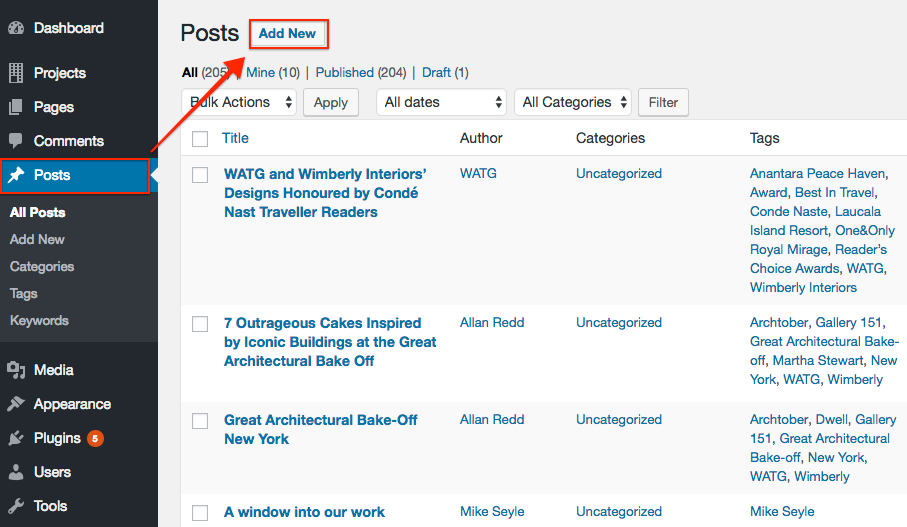
Step 1: In the Posts section, click Add New.
Step 2: Enter a Post Title and a Text Block
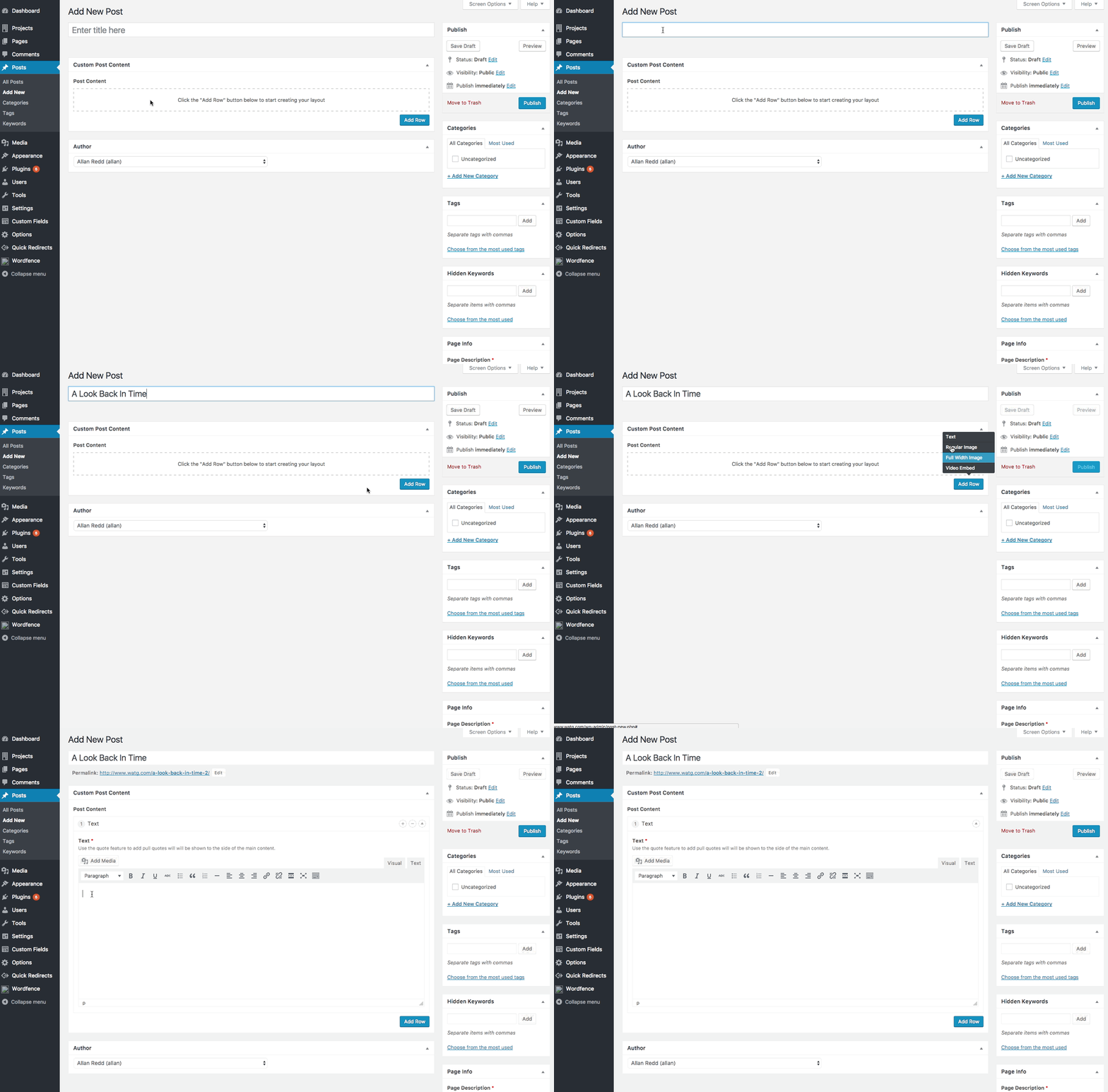
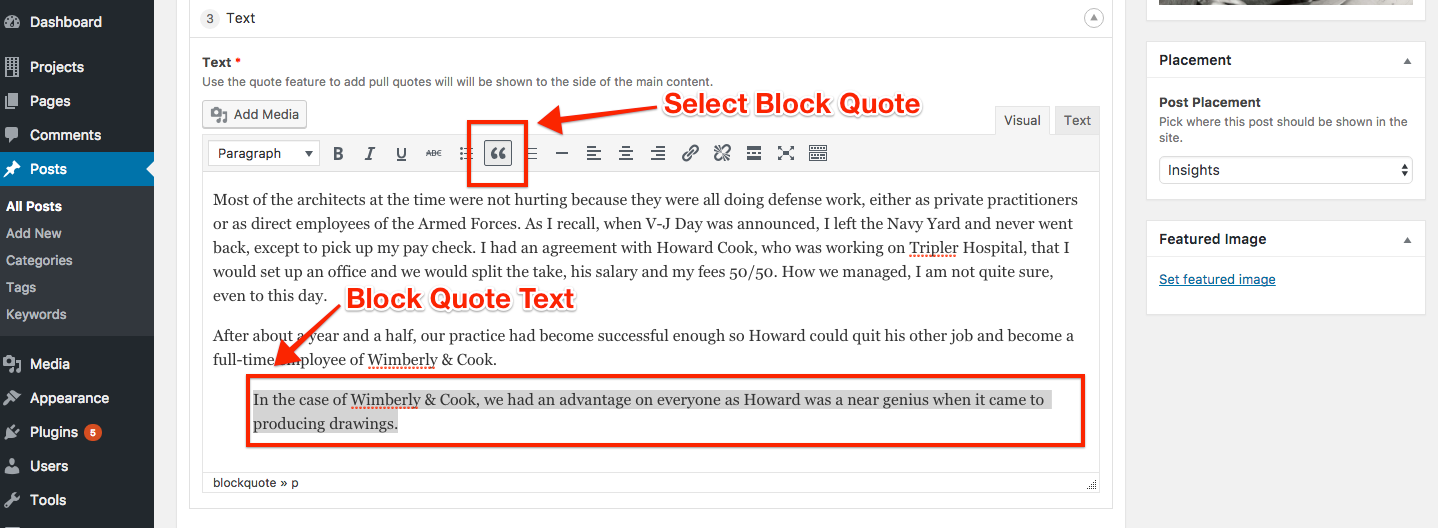
Step 3: Enter text and choose at least one Block Quote
Copy can be singled out to appear as a pulled Blockquote. Highlight the section of text that will become a Blockquote, Click the Blockquote button in the rich text editor.
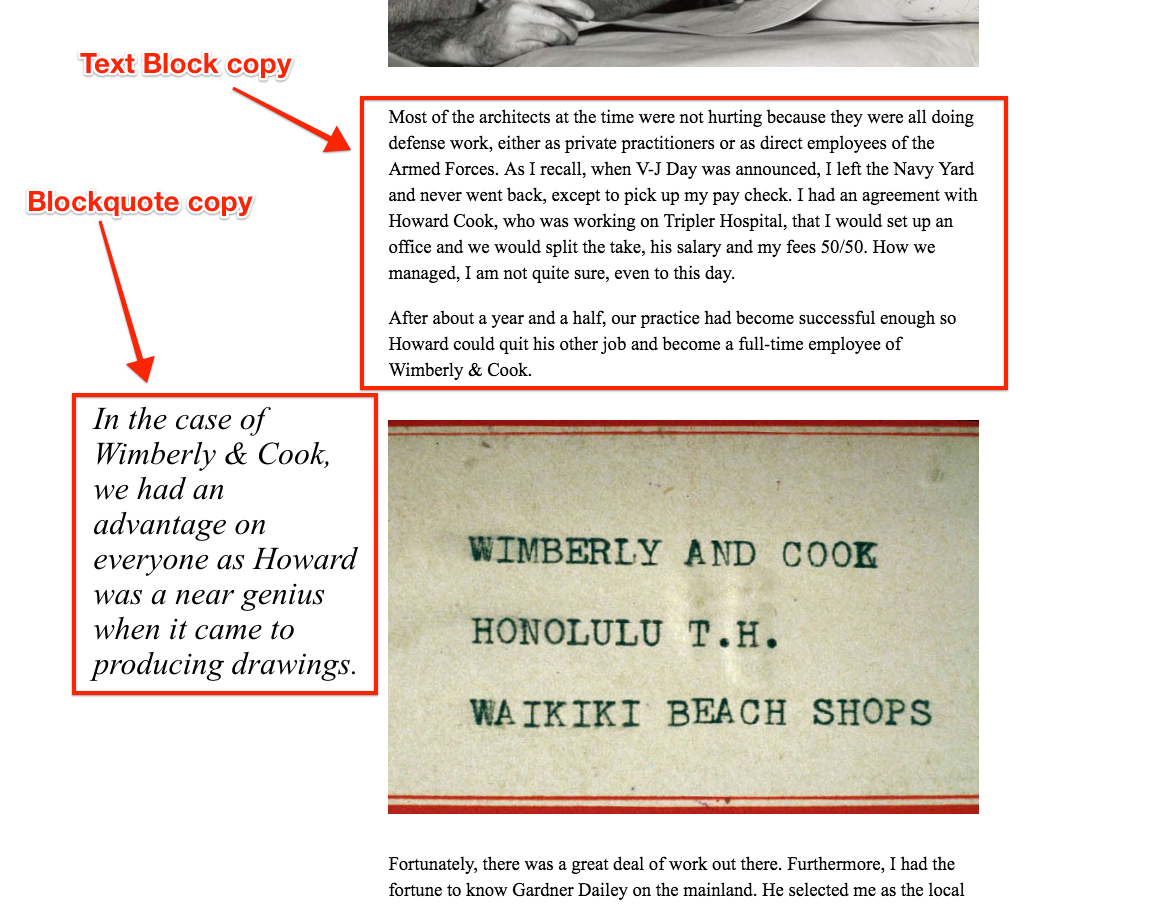
Once published, Blockquotes will appear off to the left of the text in a Text Block, even though they are both entered in the same component.
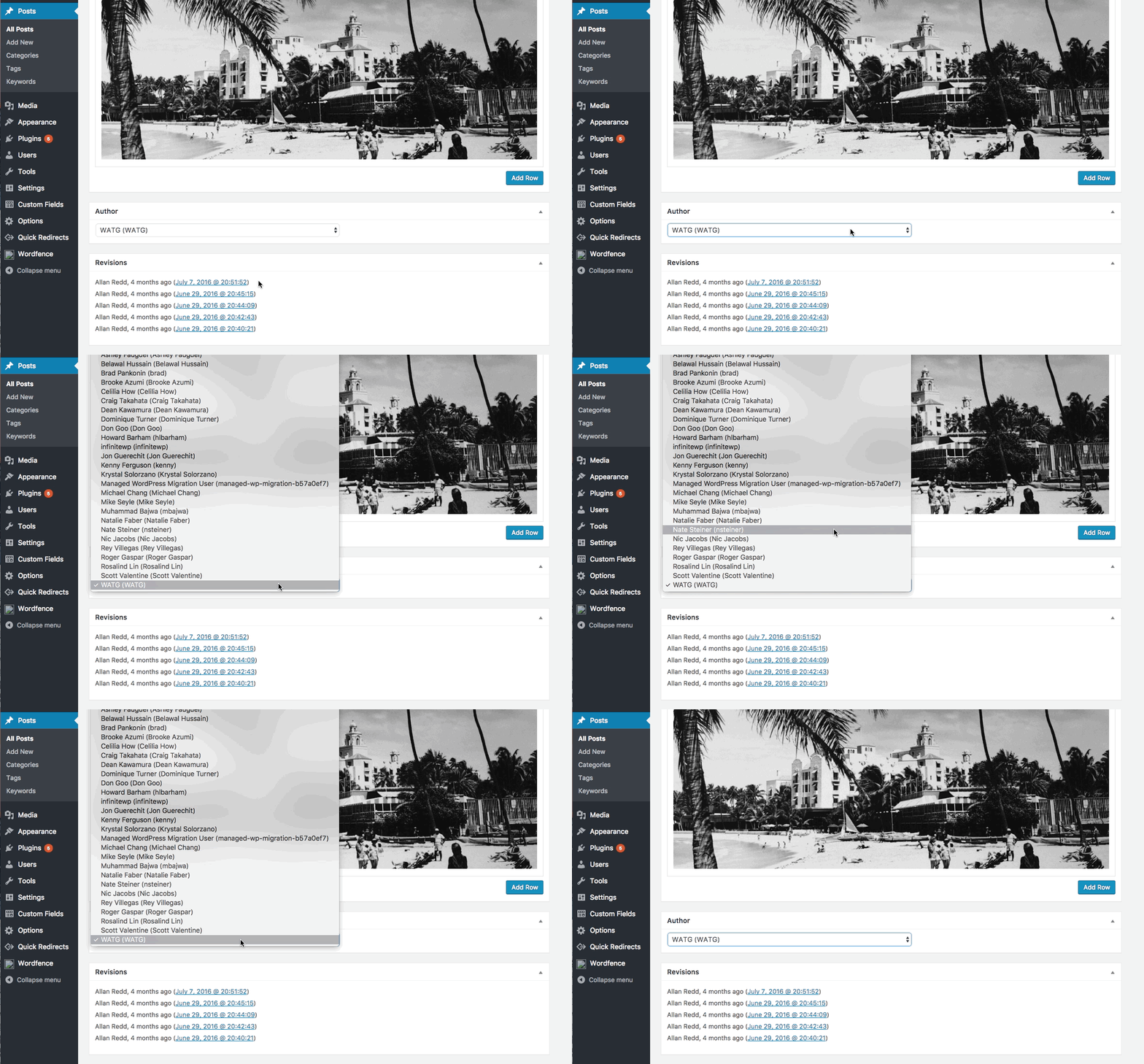
Step 4: Select the Author (a User)
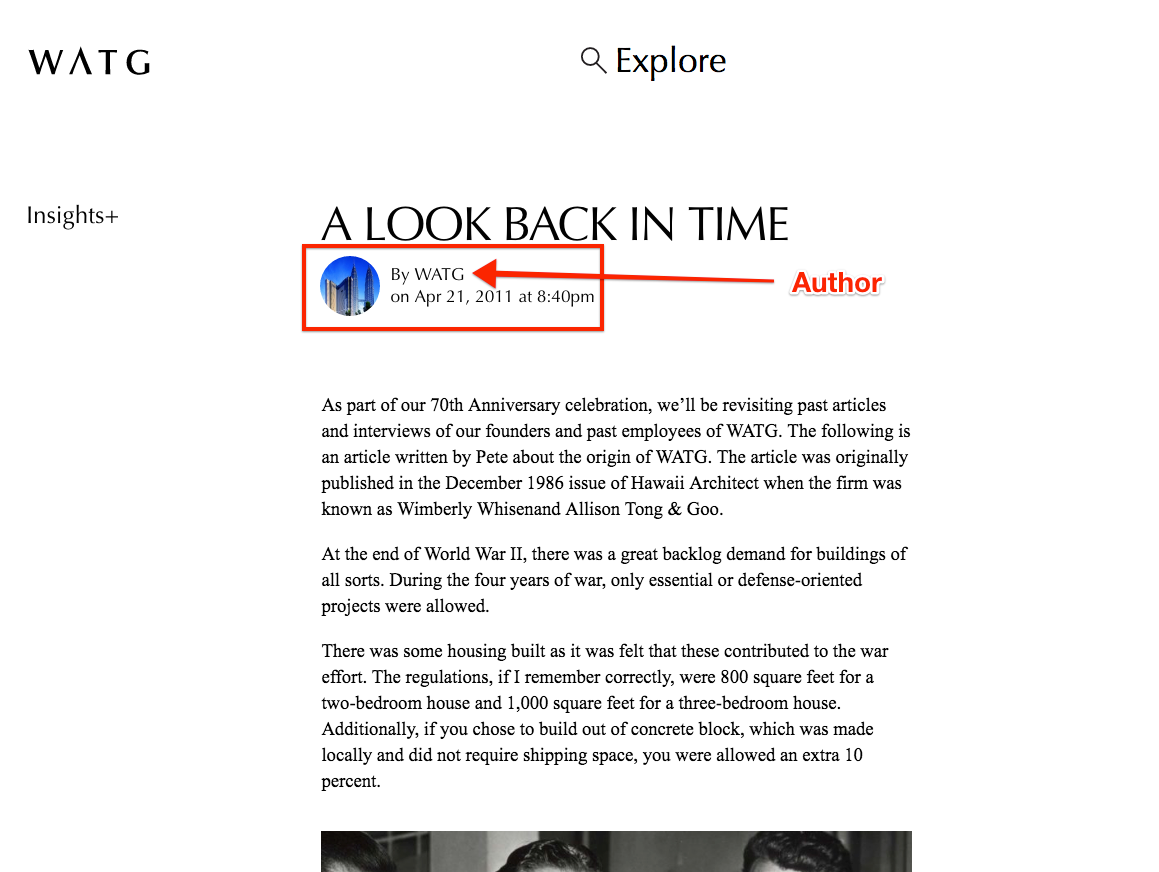
Select an Author from the list. Their name and user profile image will appear next to the title in the post.
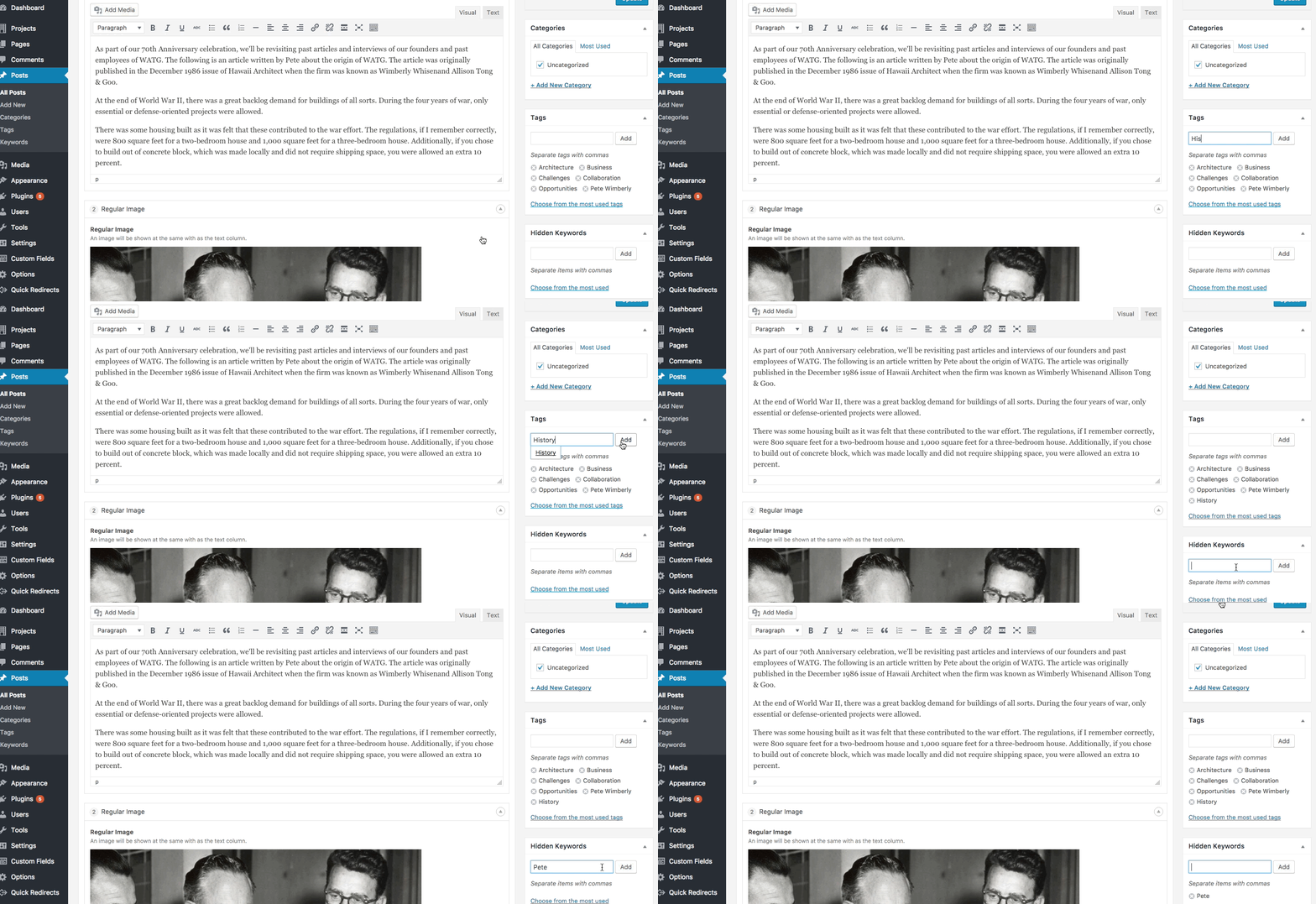
Step 5: Add Tags and Hidden Keywords
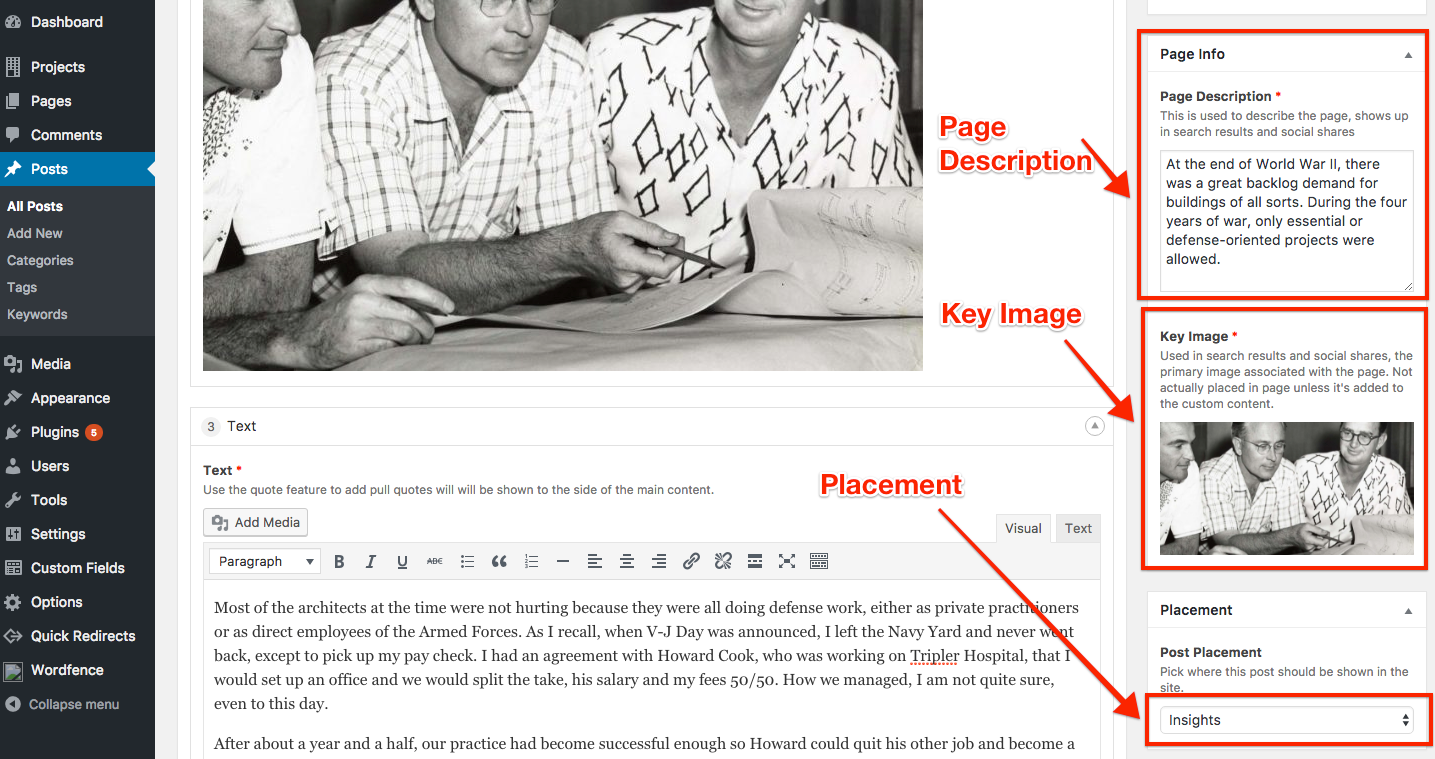
Step 6: Add Page Description, Key Image and select Placement as Insights
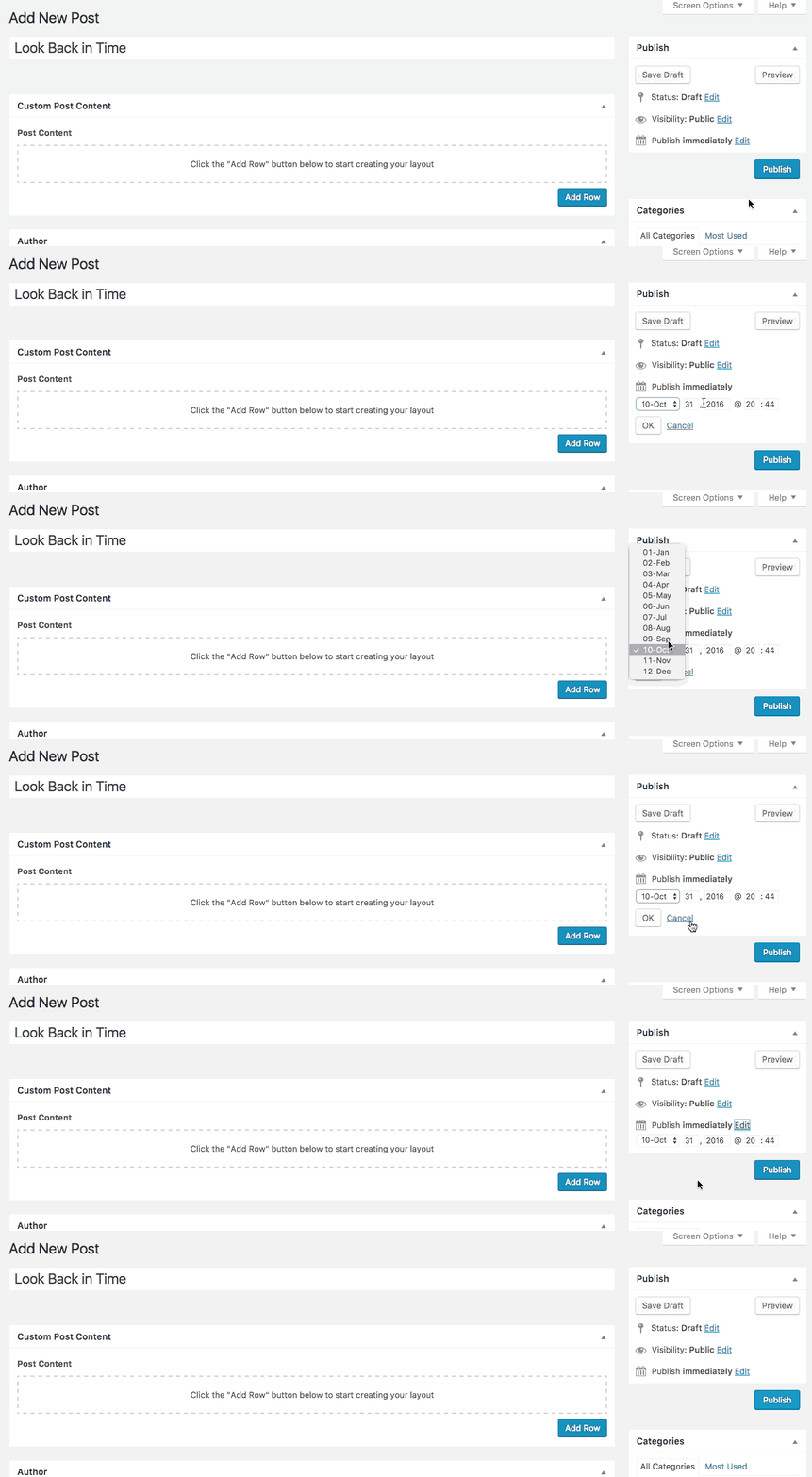
Step 7: Set publish date and publish
Any date can be chosen as the publish date. If a publish date is not selected, the Insights Post will be published in real time.