Team Member Detail Pages
These pages are variations of content pages. The differences are that they have a specific layout to follow and some of the information is displayed differently.
Updating an Existing Team Member Detail Page
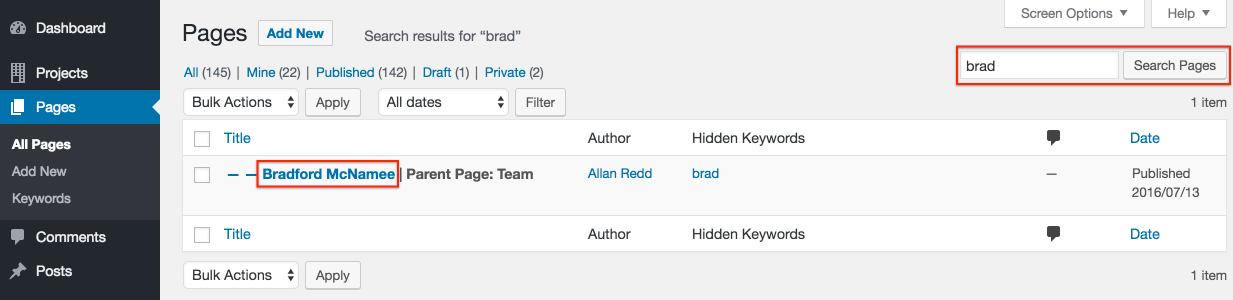
Step 1: In the Pages section, find your page by browsing or searching.
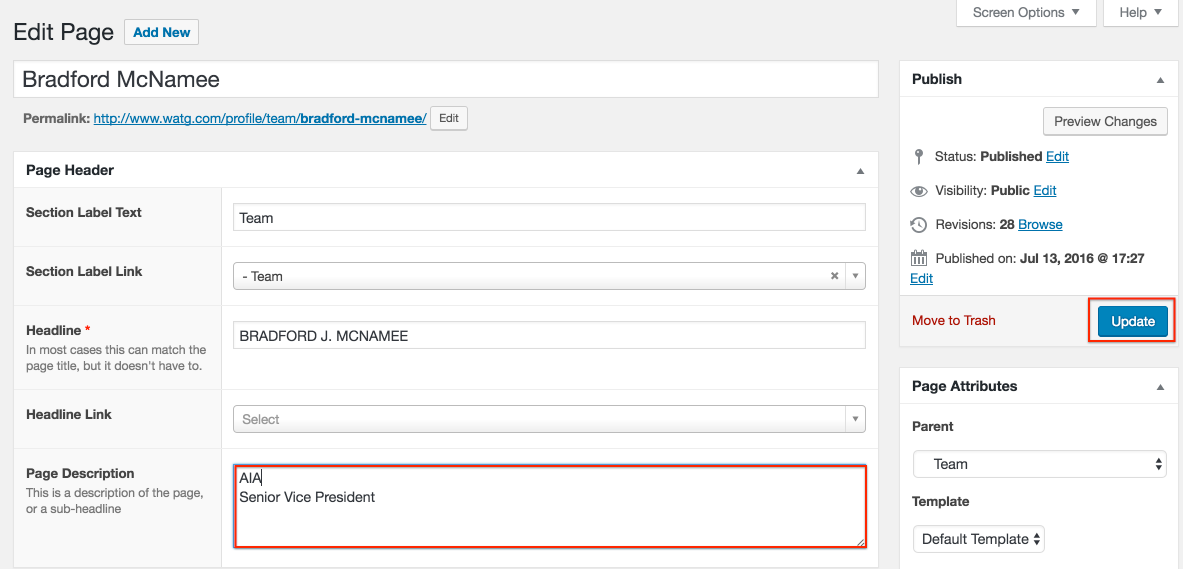
Step 2: Modify the content section(s) and click Update.
Creating a New Team Member Detail Page
Note: It's always a good idea to open a similar existing page in a new tab to provide a guide for creating your new page.
Step 1: In the Pages section, click Add New.

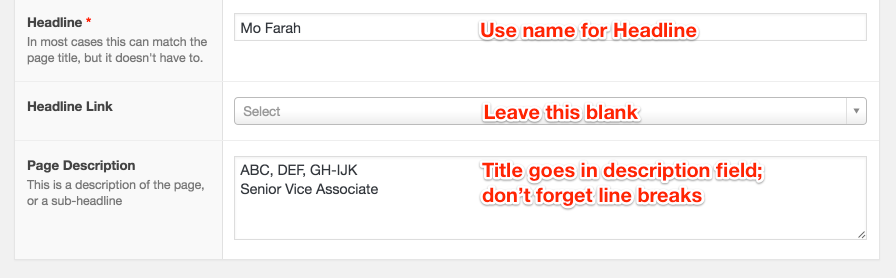
Step 2: Add fundamental information.

Step 3: Add Custom Content Sections to build the page content.
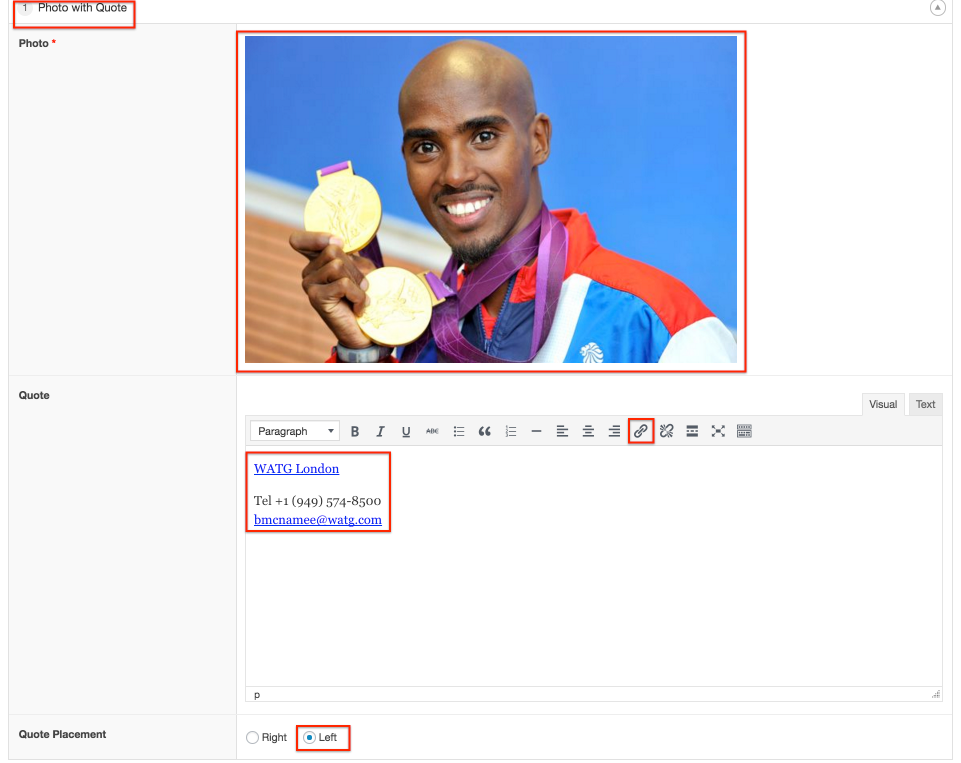
Choose Photo with Quote, then add image and contact information.
Remember to link the office and email address.
Change Quote Placement to left
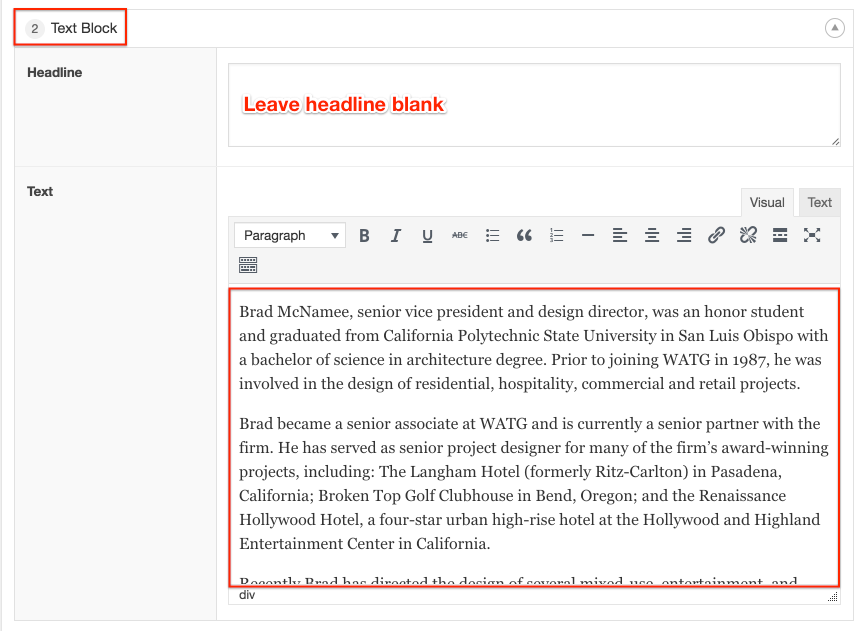
Add a Text Block section for the bio
Add a Related Projects section, if applicable
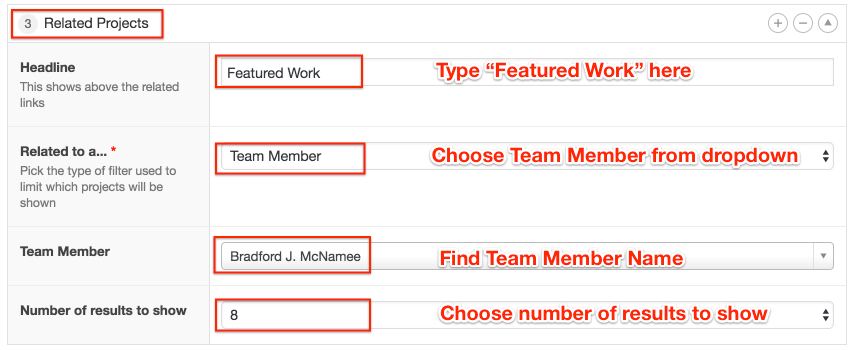
Note: New team members must be set up in Project Data to appear in the Related Projects section.

Step 4: Click Publish to make it live.